Caseware Verity for Excel: workpapers with the engagement built in

Procedures, trial balance data and supporting documents, all in one place. Prepare, review and complete without leaving the sheet.

Solutions:
No items found.
Request a Demo

Caseware Verity is saving audit teams time at every stage of the engagement, from preparing and planning to evaluating and reporting.

85% time savings in select Prepare use cases
86% time savings in select Plan use cases
81% time savings in select Evaluate use cases
78% time savings in select Reporting use cases

Click through Verity for Excel at your own pace and see how it prepares, completes and reviews audit workpapers.

Key Benefits

Build Workpapers Faster

Shorten workpaper setup so teams can spend less time preparing workpapers, freeing up time for applying professional judgment.

Cut Search and Rekeying

Stay focused in one familiar workspace, with less tab switching, information hunting and manual data entry.

Catch Gaps Earlier

Surface missing details and inconsistencies while work is underway, before they become late-stage review notes.

Keep Judgment in Control

Delegate repeatable work with confidence while practitioners retain accountability for the final workpaper.

Product Overview

Caseware Verity for Excel brings frontier intelligence directly into your audit workpapers. Grounded in the full context of the connected engagement, it helps your team direct multi-step workpaper tasks, assess results and review proposed workbook changes before they are applied.

Features

Full Engagement Context

Caseware Verity reasons across procedures, trial balance data, materiality, samples and supporting documents, not just the workbook.
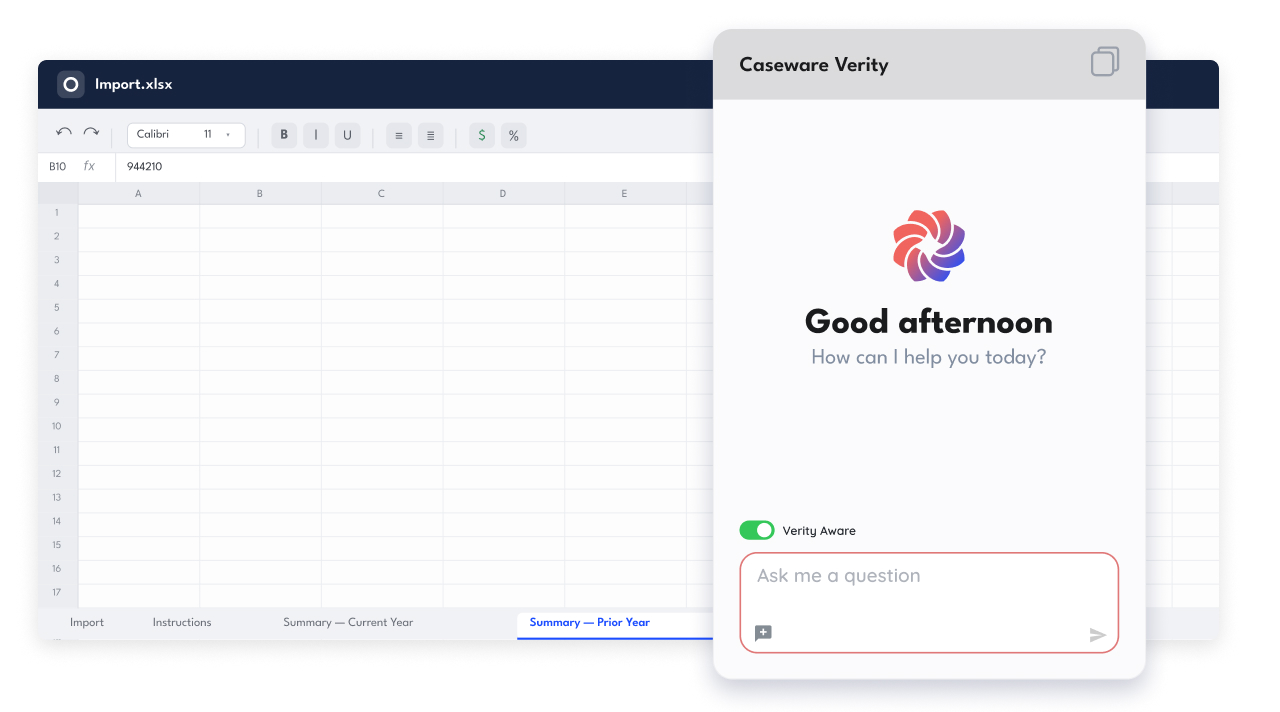
Spreadsheet interface with an open file named Import.xlsx, showing empty cells and toolbar options, with a right-side panel of Caseware Verity displaying a greeting 'Good afternoon' and a prompt 'How can I help you today?' along with a toggle switch for Verity Aware and a text box labeled 'Ask me a question'.
Smart Workpaper Authoring

Build a workpaper from a blank sheet, fill in a firm template or continue an in-progress workbook without cell-level instructions.

Screenshot of a financial workbook titled 'Statement of Net Assets Available for Benefits' showing tables with figures for non-interest bearing cash, participant contributions receivable, due from related parties, and accrued investment income, each with references. Below is a section for 'Statement of Changes in Net Assets Available for Benefits' displaying interest and dividends and net appreciation in fair value of investments with values and references. On the right is a Caseware Verity interface showing a message: 'Complete this workbook from the EBP1 plan PDF in the connected engagement.' with additional text about populating the statement with references.
Testing and Analysis

Complete testing, extract key terms and analyze ratios, trends or variances using the connected engagement as context.
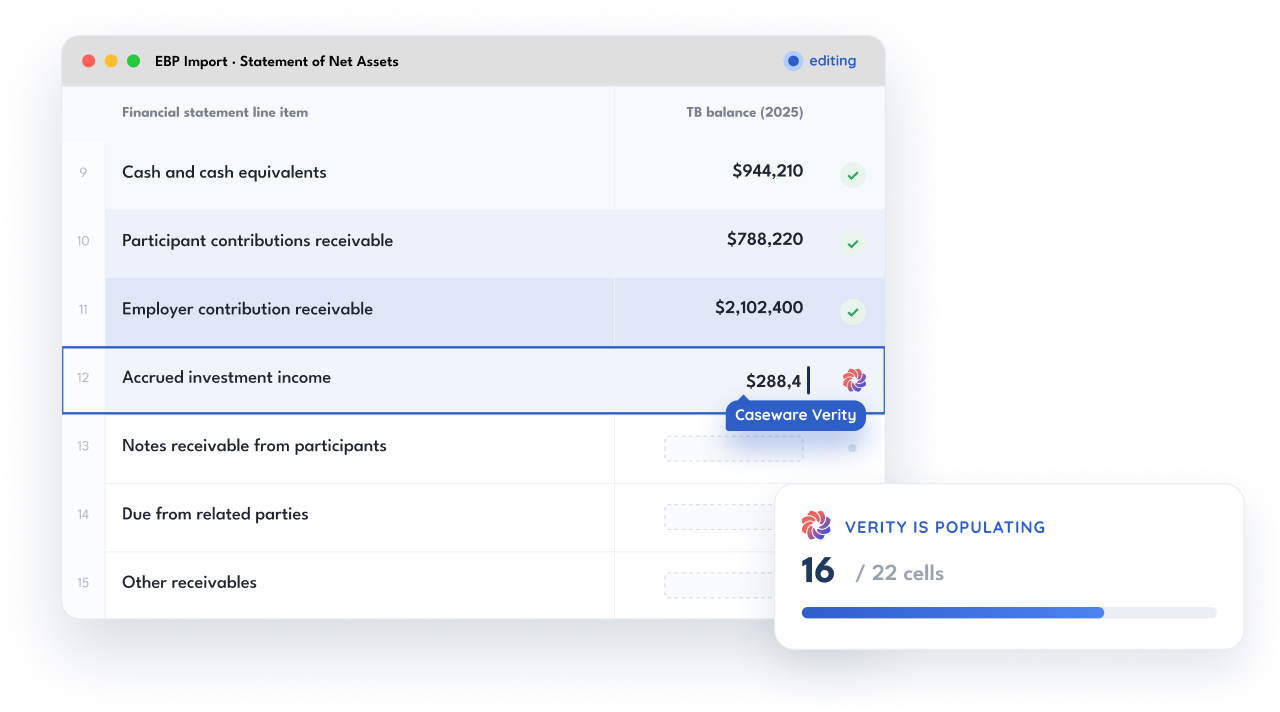
Screenshot of a financial table titled 'EBP Import · Statement of Net Assets' showing line items like cash and cash equivalents, participant contributions, employer contributions, accrued investment income, notes receivable from participants, due from related parties, and other receivables with balances for 2025. The accrued investment income row is highlighted and partially edited. A progress box at the bottom right shows 'VERITY IS POPULATING 16 / 22 cells' with a loading bar.
Review with Control

Review work against the procedure and checklist, then approve or reject suggested changes before they are applied.
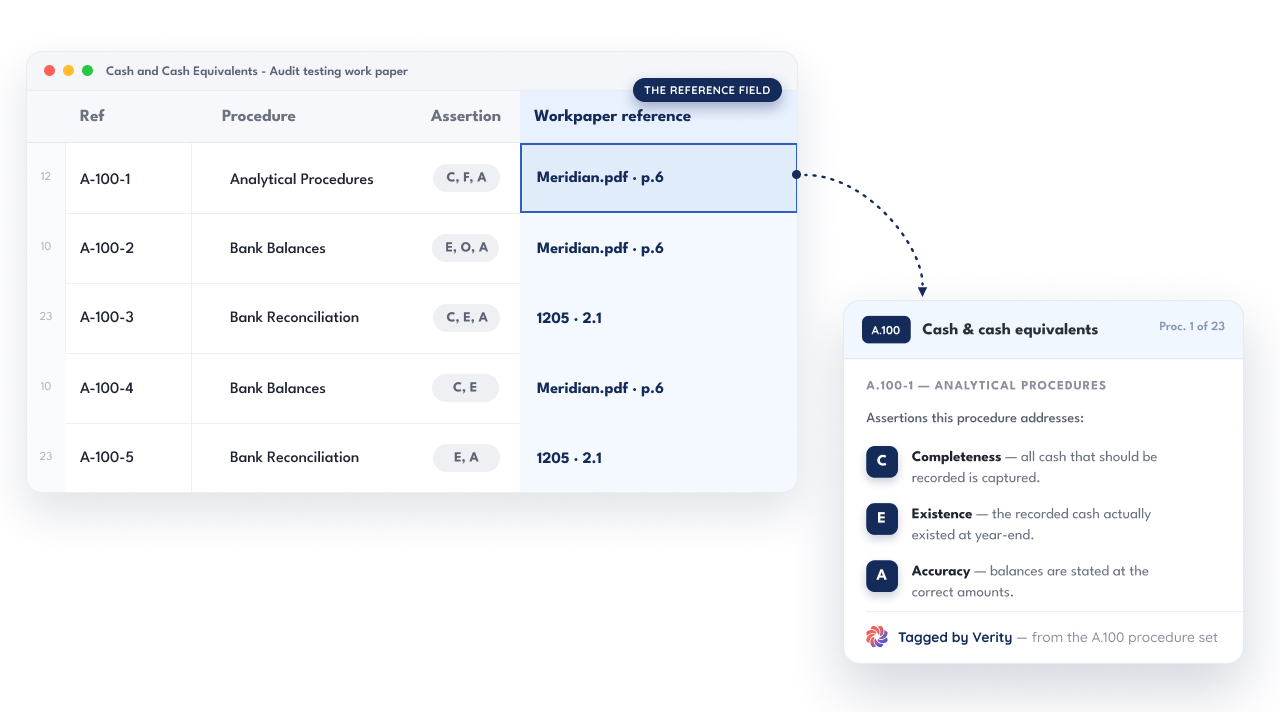
Screenshot of an audit testing work paper table listing references, procedures, assertions, and workpaper references for cash and cash equivalents. Row A-100-1, Analytical Procedures, asserts Completeness, Existence, Accuracy, linked to Meridian.pdf page 6. Popup on the right details A-100-1 Analytical Procedures explaining assertions: Completeness captures all cash, Existence confirms cash existed year-end, Accuracy states balances are correct amounts, with a note tagged by Verity from the A.100 procedure set.

How to Get Started

  1. Open Workpaper
    Open your Excel workpaper in your Caseware Cloud engagement.
  2. Launch Caseware Verity
    Select Caseware Verity in the Excel ribbon.
  3. Bringing in Context
    Ask Caseware Verity to bring in engagement data into the workbook.
  4. Complete and Analyze
    Complete testing and workpaper documentation.
  5. Review and Approve
    Approve or reject suggested updates.
    ‍

Additional Resources

No items found.
No items found.