
Key Benefits

Give Clients Clarity
Clients see a clear, status-first view of exactly what's requested of them, keeping everyone aligned throughout the engagement.
Validate Submissions Faster
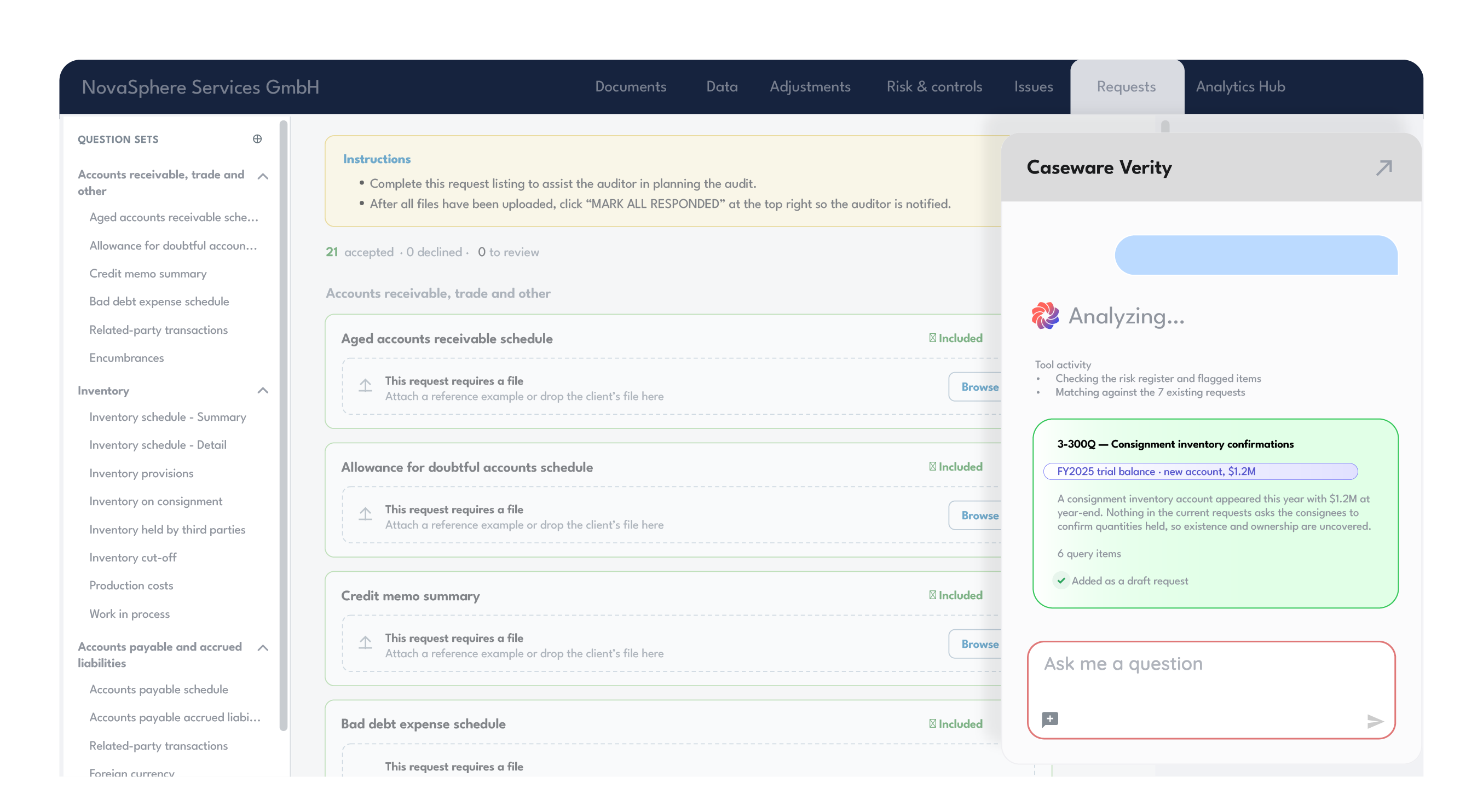
The Caseware Verity Response Agent reviews and validates client submissions on demand, flagging issues before you open the file yourself.
Catch Issues Earlier
Confirm evidence is complete and accurate before it reaches the workpaper, catching problems earlier in the review cycle.
Keep Auditors in Control
Agent findings inform your review, but the decision to accept or return a client submission always stays with you.
Product Overview
Client Requests is the capability within Caseware Cloud engagements that manages requesting, tracking and collecting client evidence. AI-powered validation helps confirm what's returned is complete and accurate before it reaches a workpaper.
Features
Every request moves from Draft to Accepted, with a full audit trail recorded on each transition.

Clients see a clear, branded view of exactly what's assigned to them, with email notifications guiding their next step.

An agentic layer reviews client submissions on demand, checking completeness, readability and document counts before you do.
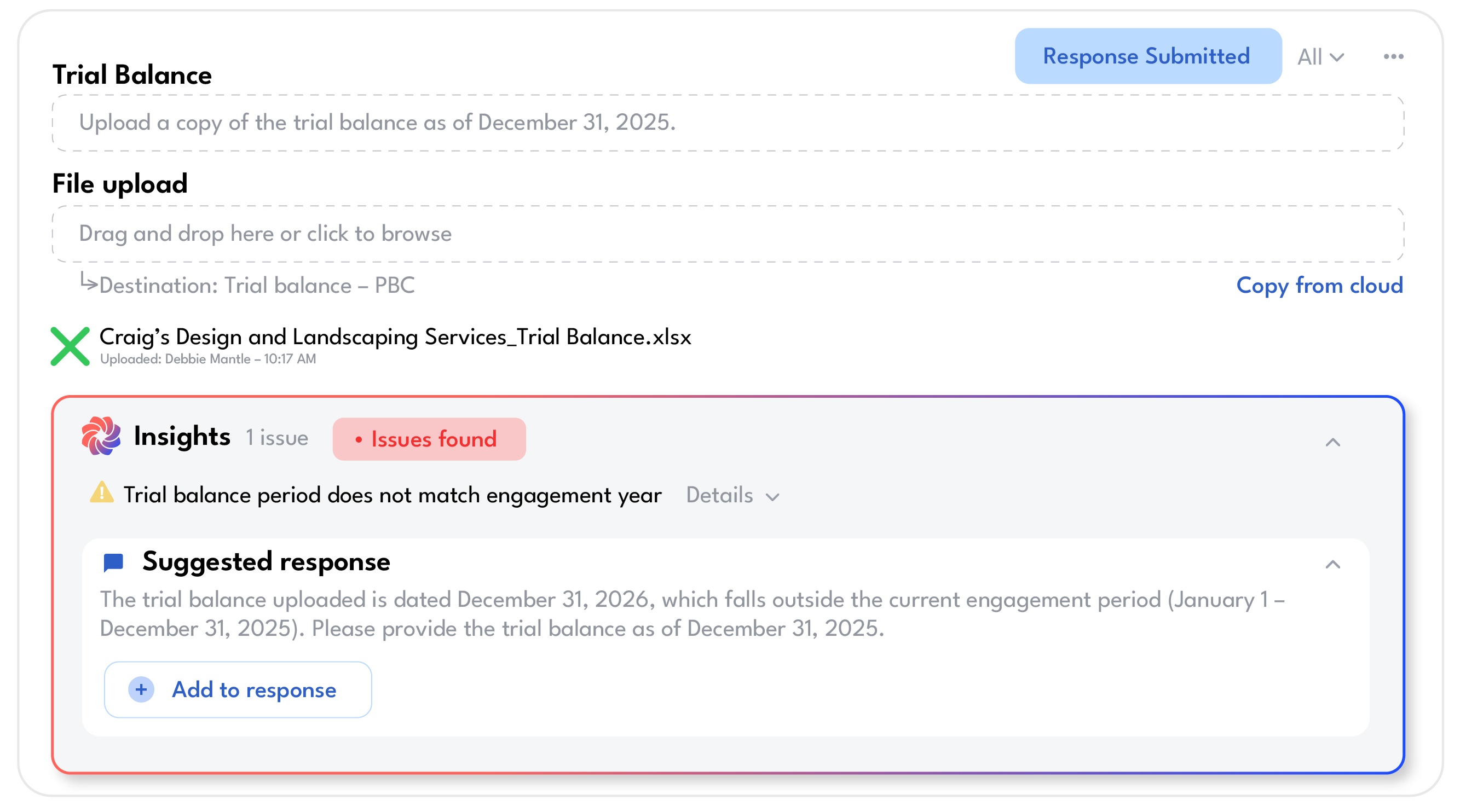
The agent's findings inform your review, but the decision to accept or return each submission always rests with the auditor.
How to Get Started
- Create the Request
Build and send your request list. - Assign to Clients
Client receives email notifications and reminders. - Collect Responses
Clients upload files or text replies. - Validate with Verity
Run the Verity Response Agent. - Review and Accept
Approve or return the response.
Additional Resources